
Prepare more than a fight
Mix people, faction activity, discoveries, weather trouble and environmental danger with combat encounters. Choose what fits the journey.
Tabletop journeys and regions
A road. A discovery.
A reason to stop.
Prepare the next encounter.
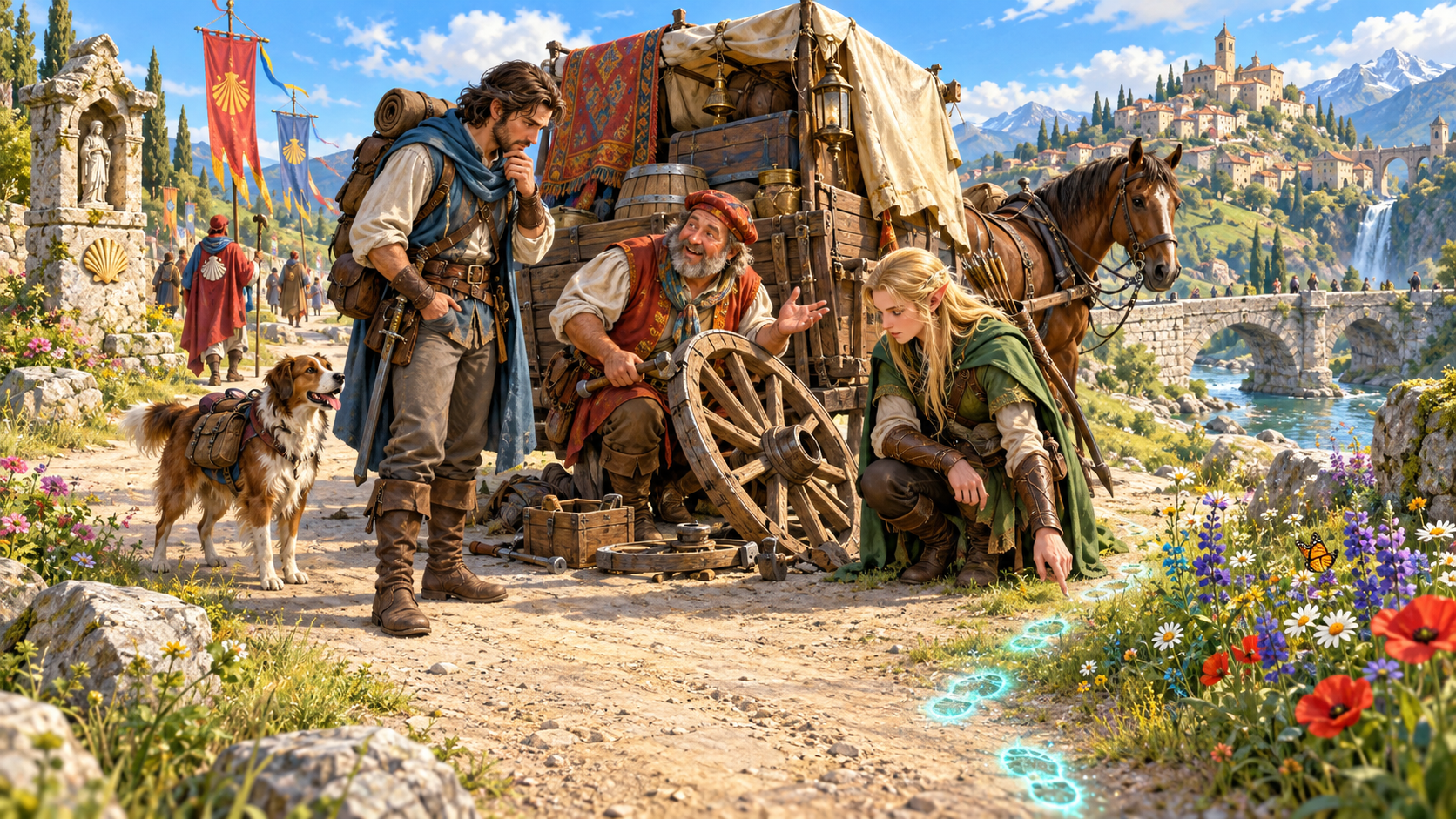
A journey with something to discover
Keep several possibilities together in a regional profile.
Mix people, faction activity, discoveries, weather trouble and environmental danger with combat encounters. Choose what fits the journey.
Review the location, route, time, conditions and people involved. Decide why this situation matters to your adventure.
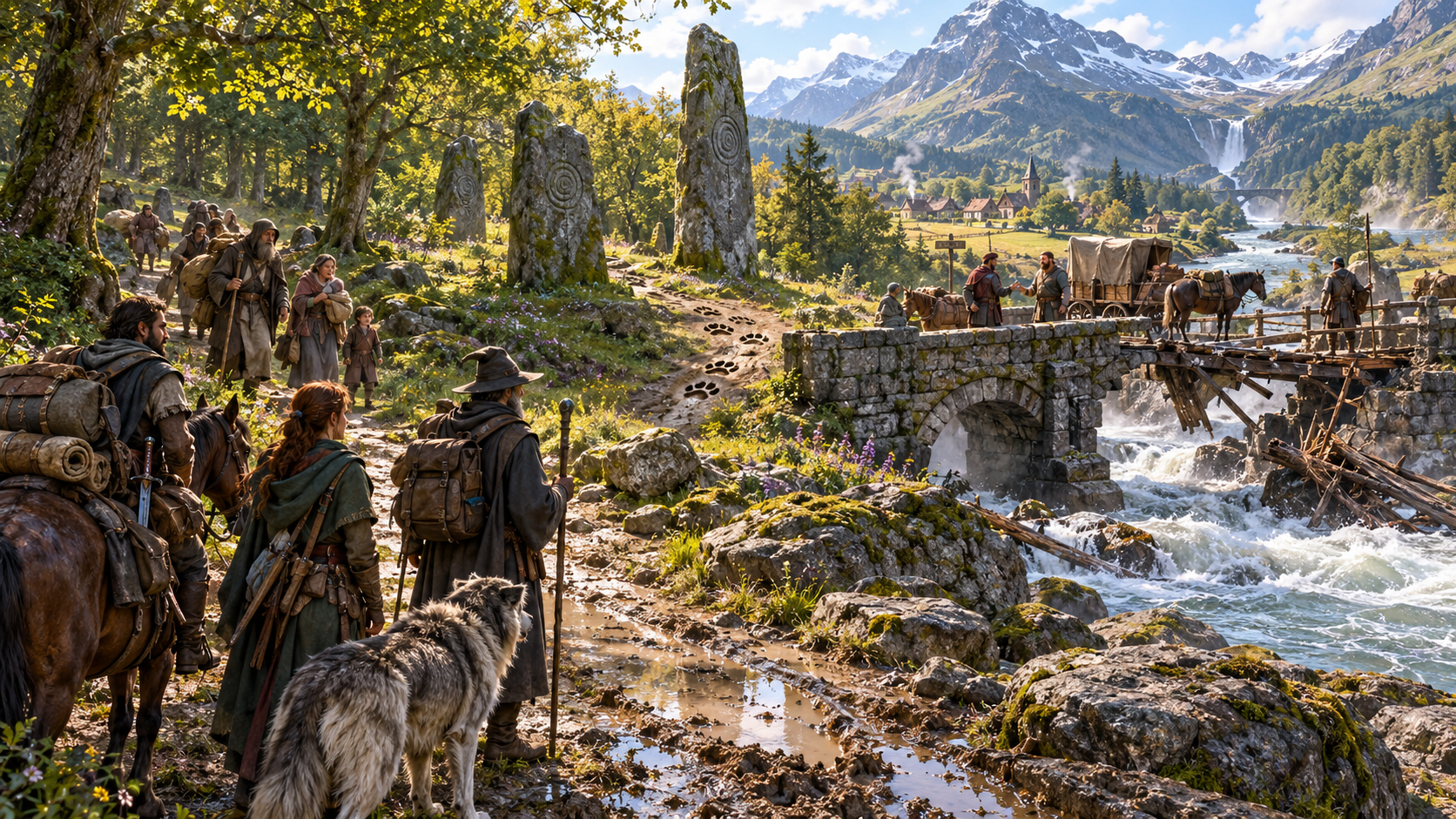
Tracks. Travellers. A crossing.
The illustration shows adventurers following tracks toward travellers and a wagon at a river bridge, with standing stones, a settlement and mountains nearby.
Set the environment and journey context, then review the selected event. Consider who is there, what is happening and the risks or opportunities the party can recognise.
Regional encounter preparation
Build a profile and review the event you want to use.
Prepare combat, social, discovery, environmental, faction and travel events. Give a journey several kinds of situation to explore.
Set the party tier and size, environment and journey context. Generate a profile and review its encounters.
Add time, season, weather, travel circumstances, factions, creature type and disposition. Choose details that fit your region.
Choose event categories and a profile size from four to twenty entries. Keep the regional profile beside the selected encounter.
Select a profile entry directly or use a manual roll. Review the selected situation before bringing it to the table.
Review the people, creatures or factions involved, what is happening before arrival and reasons to engage or move on.
Use visible clues, risks, opportunities and non-combat approaches as preparation. Decide what the party can learn in the scene.
Edit the title and situation to suit your session. Reroll the profile or selected encounter when preparing another possibility.
Save the current result to your account library, search profiles by name, reopen saved results and delete entries you no longer need.
Copy or download the full result as JSON, including its profile, selected encounter and recent history. Print the Dungeon Master view and review it before sharing.
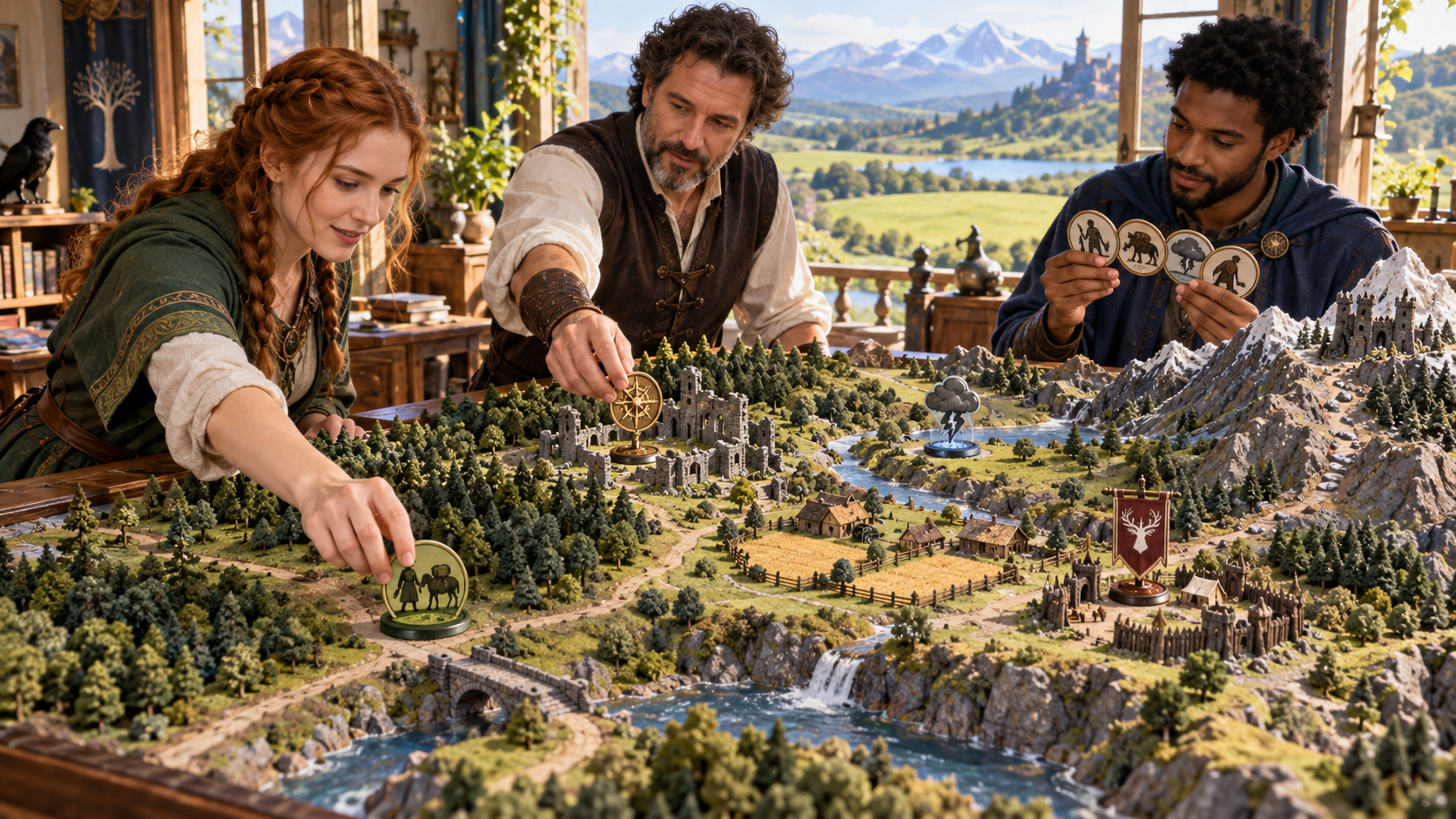
Prepare a regional profile
The illustration shows a group placing traveller, compass, weather and faction tokens across a regional model of roads, rivers, settlements and mountains.
Use Quick setup for the basic journey or Deep setup for regional detail. Choose event categories and profile size, generate the profile and review a selected encounter beside it.
From the journey to the encounter
A focused preparation workflow.
Choose the party tier and size, environment and journey context. Add time, season, weather and regional detail when using Deep setup.
Choose the event categories and number of entries. Generate a collection of encounters for the region.
Read the immediate situation, people involved, clues, risks and possible ways the event unfolds. Choose an approach that fits your adventure.
Edit the title and situation, keep useful results and print your Dungeon Master view. Decide which details to reveal at the table.
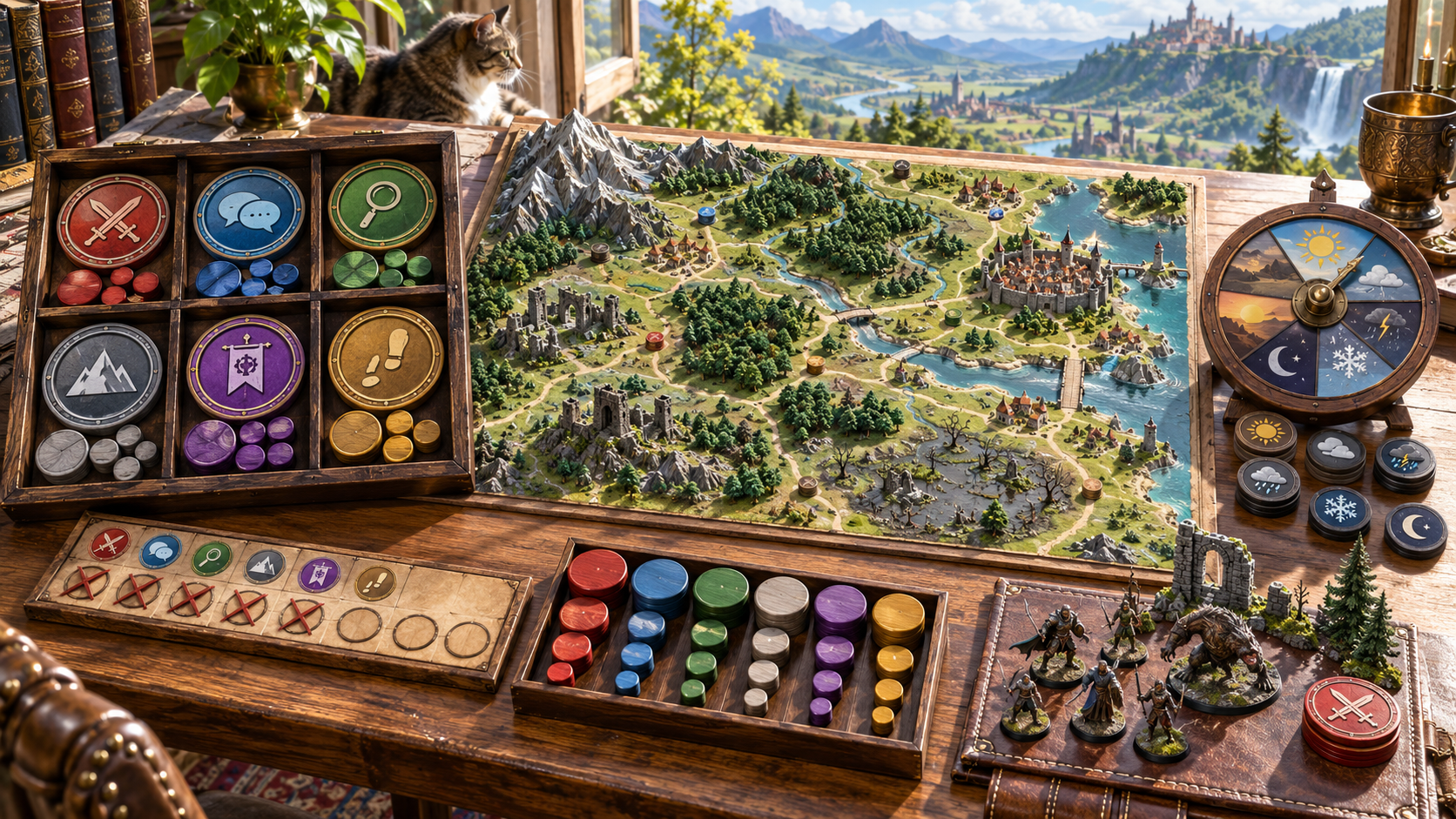
A collection for the journey
The illustration shows a regional map beside six groups of event tokens, a weather dial, a record board and a separate combat scene.
Keep the regional profile and selected encounter together. Review possible ways the event unfolds, consequences and links to the region, then decide how the event responds to your players.
Keep useful encounter material
Keep preparation ready for your sessions.
Save the current result, search profiles by name and reopen a useful saved entry. Delete records you no longer need.
Copy or download JSON containing the regional profile, selected encounter and recent history. Keep it with your preparation records.
Print the result for table use. Review clues, risks and private guidance before deciding what to share with players.
Send a combat-capable event to Combat Pro as preparation. Review enemy references, numbers and statistics before running the fight.
Your workspace and related tools
Open your tools through your VISINVOKE account.

Open Random Encounter Generator in DCC. Get the desktop workspace through your account installer page.
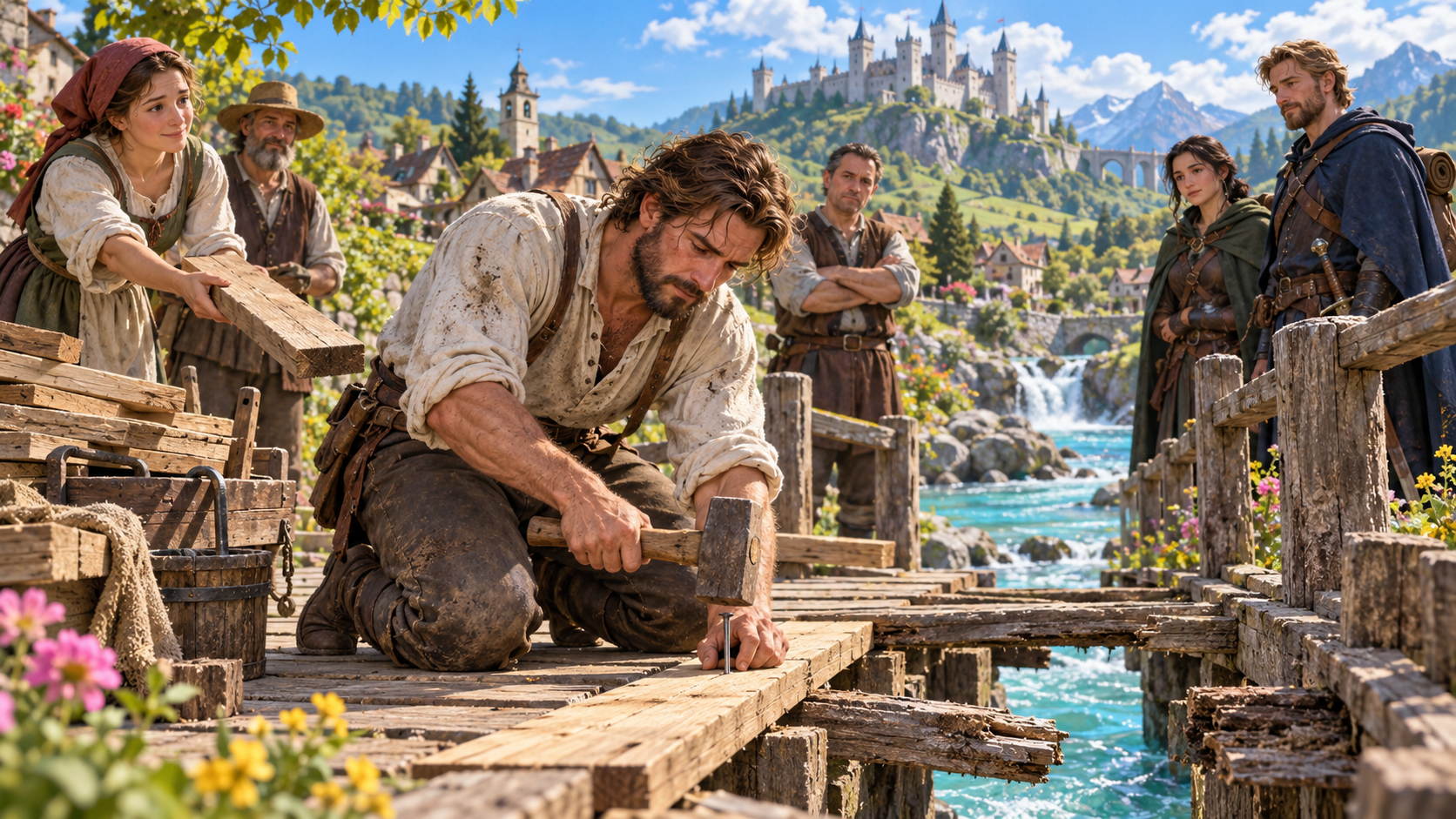
Prepare a separate story about making amends, its cost and how others respond. Use that material alongside your adventure.
Product illustrations show roadside situations, regional preparation and encounter collections.
Questions and answers
Preparation, profiles, saved results and account access.
Prepare combat, social, discovery, environmental, faction and travel events. A regional profile keeps several possibilities together beside the selected encounter.
Quick setup covers party tier and size, environment and journey context. Deep setup adds time, season, weather, travel circumstances, factions, creature details and event categories.
Select a profile entry directly or use a manual roll to select one. Review the people, location, immediate situation and possible ways the event unfolds against your journey.
Save the current result to your account library, search profiles by name, reopen or delete saved entries. Copy or download the full JSON result and print the Dungeon Master view. Review the content before sharing it.
Send a combat-capable encounter to Combat Pro as a prepared encounter. Review its enemy references, numbers and statistics before running the fight. Other event types stay in Random Encounter Generator.
Open it from the Generators collection in VISINVOKE Desktop Control Centre. Create an account or sign in and get DCC through your account installer page.
Continue in VISINVOKE
Create an account or sign in. Get Desktop Control Centre through your account installer page and open Random Encounter Generator.
Keep regional profiles, saved results and exports together in your desktop workspace.